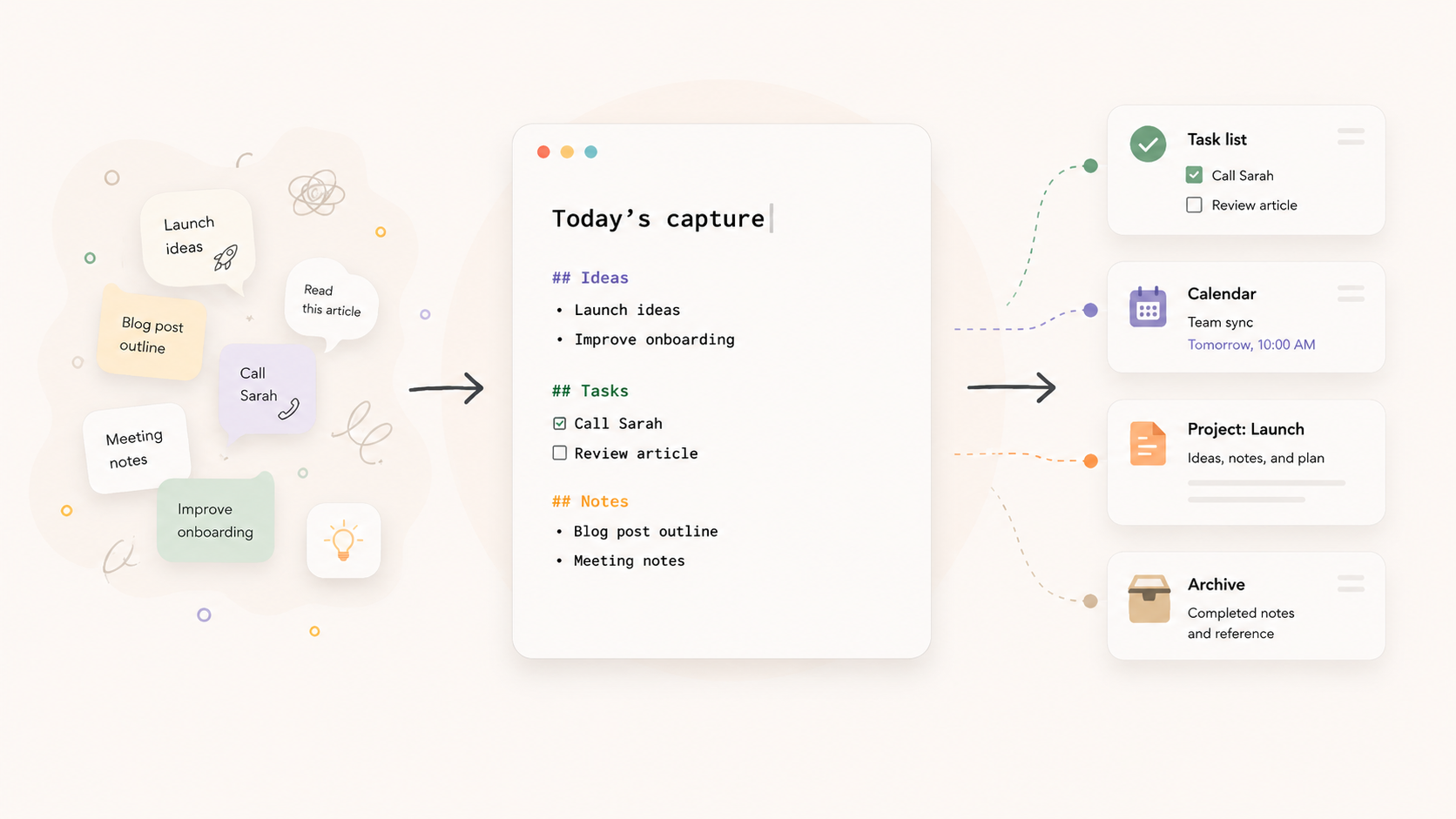
Memorypad is a simple place to collect the thoughts, notes, reminders, and ideas that pass through your head while you’re trying to work.
Some of these thoughts are useful. Some are urgent. Some are half-formed. Some are just little things you don’t want to forget. The problem is that they rarely arrive at a convenient time. You might be in the middle of writing, replying to a message, planning your day, or focusing on a difficult task when something else suddenly asks for your attention.
That’s where Memorypad comes in.
Instead of trying to decide immediately whether something belongs in your task manager, calendar, notebook, project workspace, or knowledge base, you can quickly write it down and keep moving. Memorypad gives your thoughts a temporary home so they stop competing for your attention.
Think of it as scratch paper for your brain.
In this guide, we’ll walk through a simple way to use Memorypad as part of your daily productivity system: capture what’s on your mind, clarify it when you have time, move it where it belongs, and start fresh again.
Capture what’s on your mind
The most important habit in Memorypad is also the simplest: when something crosses your mind, write it down.
You don’t need to organize it first. You don’t need to turn it into a proper task. You don’t need to decide whether it belongs in a project, a calendar, or a long-term note. At the moment of capture, your only job is to get it out of your head.
A normal day creates a surprising amount of mental noise. You remember a bill you need to pay. You get an idea for a project. Someone mentions something in a meeting. You think of a question to research later. You remember that you need to buy something for the house. None of these thoughts are necessarily difficult on their own, but together they create a background hum that makes it harder to focus.
Memorypad gives all of that a place to land.
Your notes can be messy at first:
# today

- reply to Sarah
- check renewal invoice
- dentist Thursday 4pm
- review onboarding copy

# ideas

- article about working memory
- weekly reset feature?
- make export flow feel lighter

# meeting

- users miss the import button
- maybe show sample content on first launch
- ask design about empty state
This doesn’t need to look like a polished document. In fact, it probably shouldn’t. Memorypad works best when it feels fast, casual, and low-pressure. It is a place for thoughts before they become organized.
Decide what each thought really is
Once your thoughts are written down, you can come back to them with a clearer head.
This is where Memorypad becomes more than a scratchpad. It gives you a small space between “I thought of something” and “I committed to doing something.” That space is useful because not every thought is ready to become a task.
For example, you might capture something like:
- fix onboardingThat sounds like a task, but it is still too vague. If you put it directly into your task manager, it will probably sit there for a while because it doesn’t tell you what to actually do next.
Before moving it elsewhere, you can use Memorypad to clarify it:
- review onboarding flow and list the 3 biggest points of confusion
- ask Sarah where users are dropping off
- rewrite the empty state copy
Now you have real actions.
When reviewing your Memorypad, ask yourself a few simple questions. Is this something I need to do? Is it an event that belongs on the calendar? Is it a note I want to keep? Does it belong to a specific project? Is it just a passing thought that I can delete?
This small clarification step keeps the rest of your system cleaner. Your task manager gets clearer tasks. Your calendar gets real appointments. Your project workspaces get useful notes instead of random fragments.
Move things where they belong
Memorypad is designed to be temporary. It is not meant to become another overloaded inbox that quietly collects hundreds of old notes.
A good rule is:
Capture in Memorypad. Commit somewhere else.
If something requires action, move it to your task manager. If something has a specific time, move it to your calendar. If it belongs to a project, move it into that project’s workspace. If it is useful long-term knowledge, move it to your knowledge base. And if it no longer matters, delete it.
This is the difference between a capture tool and a storage system.
Memorypad helps you catch thoughts quickly, but the rest of your system gives them a proper home. For example, a quick note like “cancel trial before renewal” might become a dated task. “Demo call Monday 11” belongs on the calendar. “Memorypad should focus on working memory” belongs in the Memorypad project workspace. “Article idea: why simple tools survive” might belong in your knowledge base or writing folder.
By moving things out regularly, Memorypad stays light and useful. It remains a clear working space instead of becoming a pile of old decisions.
Use Memorypad while planning your day
Your task manager shows the things you have already committed to. Your calendar shows where your time is already spoken for. Your notebook or planner might show the shape of the day.
Memorypad shows something different: the loose thoughts that have been floating around while life was happening.
That makes it especially useful during daily planning. Before you decide what today looks like, open Memorypad and scan what you captured recently. You may find a reminder that never made it into your task manager, a project note that changes your priorities, or a small errand that belongs in your personal list.
A simple daily Memorypad page might look like this:
# today

- finish pricing section
- review landing page hero
- send build to tester

# inbox

- buy dishwasher tablets
- check AppleCare keyboard coverage
- ask Ahmad about invoice
- write down idea for productivity guide

# later

- clean downloads folder
- compare export options
- look into better desk lamp
This does not have to replace your task manager or notebook. It simply gives you a flexible surface for shaping the day before you commit to a plan.
Once the important pieces are clear, move them into the right place and continue working.
Reset at the end of the day
Memorypad works best when it is cleaned regularly.
At the end of the workday, take a few minutes to review what you captured. Move clear tasks into your task manager. Add appointments or reminders to your calendar. Place project notes in their project workspace. Save useful references in your knowledge base. Delete anything that was only useful in the moment.
This small reset prevents Memorypad from becoming noisy.
You do not need to process everything perfectly. The goal is simply to close the day with fewer loose thoughts than you started with. When you do this regularly, Memorypad becomes a trusted place to capture things because you know they will not disappear into a forgotten pile.
A good end-of-day reset asks:
- What did I capture today?
- What still matters?
- What needs action?
- What needs to be scheduled?
- What belongs somewhere else?
- What can I delete?
After a few minutes, your head is clearer and your system is cleaner.
Review your notes once a week
A weekly review gives Memorypad another useful role. It helps you notice what has been repeatedly asking for your attention.
If the same project keeps appearing in your notes, it may need more space in your weekly plan. If the same task keeps showing up, it may need to be scheduled, delegated, or deleted. If an idea keeps coming back, it may be ready to become a real project, article, or document.
Your Memorypad history can show you what your attention has been touching all week.
During your weekly review, look through anything that has not been processed yet. Move the useful pieces into your task manager, calendar, project workspaces, notebook, or knowledge base. Archive anything worth keeping. Delete the rest.
Then start the next week with a clean pad.
That clean start is part of the value. Memorypad should feel like an open surface, not a crowded archive.

How Memorypad fits with the rest of your system
Most people already have several productivity tools, even if they do not think of them as a system. They might use a task manager for actions, a calendar for appointments, a notebook for planning, a folder structure for projects, and a notes app for long-term reference.
Memorypad does not need to replace any of those.
Its role is to sit before them.
It is the first place a thought can land before you know what it is. That makes it especially useful because thoughts often arrive before they are ready to be categorized.
Use Memorypad to think freely. Use your task manager to commit to actions. Use your calendar to protect time. Use your notebook to plan and reflect. Use your project workspaces to hold project material. Use your knowledge base to keep long-term notes.
When each tool has a clear job, the system becomes easier to trust.